📂 Hierarchy panel
A live view of the scene tree, DontDestroyOnLoad included. Expand through children, then click a GameObject
to open it in the Object Inspector and edit its components while the game runs — which
is the point when you’re on a device and the Editor’s own hierarchy isn’t there.
🧰 Utilities panel
Tools
| Button | What it does |
|---|---|
UI Scale + / - |
Resize the runtime overlay. The fix for a wrongly-detected device DPI — see Troubleshooting |
SafeArea + / - |
Nudge the safe-area inset. Only appears in the runtime overlay on a device that actually reports a safe area |
FPS Monitor |
Toggle the floating FPS graph. Click it to flip between fps and ms; right-click to collapse / expand |
Memory Monitor |
Toggle the floating memory graph. Click to force a GC, double-click to unload unused assets, triple-click to collapse / expand |
GC Collect |
Force a garbage collection now |
Resources UnloadUnused |
Resources.UnloadUnusedAssets() |
Copy / Email / Export Text Logs |
Dump the log history. Customize the contents with IConsoleLogExportFormatter — see Logging |
Types inspector |
Search loaded types and inspect their static members. Hidden when the Object Inspector is disabled for the build |
Player Prefs
Type a key to read, edit or delete its value (int / float / string), or Delete All. Keys you’ve viewed are
kept in a history dropdown.
Unity can’t enumerate PlayerPrefs keys at runtime, so supply your own list for the dropdown:
NjConsole.Settings.PlayerPrefKeysProvider = () => new List<string> { "playerName", "musicVolume", ... };
Info screens
App Info, Screen Info, Device Info, QualitySettings, Graphics Info, Other SystemInfo and About — handy in a bug report from a device.
Not all of it is read-only. Anything with a setter can be changed live, which makes these a quick way to reproduce a device-specific problem without rebuilding:
| Screen | What you can change |
|---|---|
| Screen Info | width / height (applies via Screen.SetResolution), fullScreen, fullScreenMode, orientation, brightness, sleepTimeout, targetFrameRate |
| QualitySettings | Quality level, vSync, anti-aliasing, anisotropic filtering, shadow quality / distance / cascades / projection, LOD bias, pixel light count, particle raycast budget, mipmap streaming, async upload |
| App Info | targetFrameRate |
| Device Info, Graphics Info, Other SystemInfo | Read-only — straight SystemInfo dumps |
Read-only values within an editable screen (Screen.dpi, currentResolution, safeArea, activeColorSpace)
just render as text.
Resizing via
Screen.width/Screen.heightonly works in the runtime overlay — the editor window shows “See in runtime overlay” instead, since resizing the Game view from there isn’t meaningful.
Show all at the bottom of App Info, Screen Info and QualitySettings opens the whole type in the Object Inspector, where you can reach everything else on it. Some properties won’t show in a player build due to native binding.
Features > In Player Utilities Paneldisables the whole panel for player builds.
🔍 Object Inspector
The shared view for looking at — and editing — a live object. It opens from several places:
- Clicking an object link in a log
- Clicking a GameObject or component in the Hierarchy panel
- Right-clicking a GameObject in Unity’s own Hierarchy →
Inspect in ⌨ NjConsole(Editor only) /inspectin the Command LineUtilities > Tools > Types inspector, to reach static members of any loaded type- From your own code:
Ninjadini.Console.UI.ConsoleInspector.Show(someContainerElement, myObject);
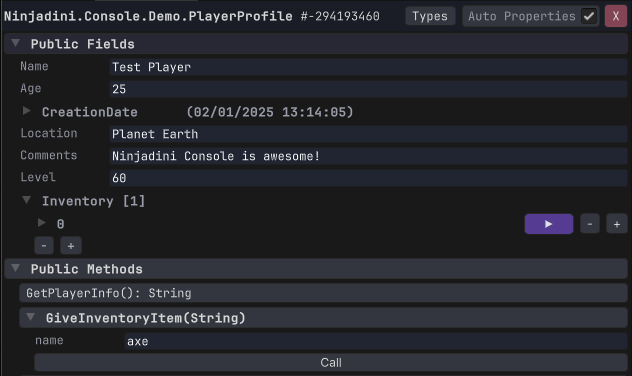
- Read and edit fields and properties. Types that aren’t supported yet show read-only.
- Follow references into nested objects;
◀walks back. - Call methods, including ones taking parameters.
- View static members via the
View static members >button. Types— search loaded assemblies for any type to inspect its statics.⌨— send the object to the Command Line as the current scope, ready for/call,/storeand the rest. See Accessing Logged Objects.
Auto read properties — the toggle at the top. Reading a property can have side effects (
Renderer.materialduplicates thesharedMaterial), so some aren’t read until you ask.
Features > In Player Object Inspectorturns it off for player builds — that switch also covers log object links, hierarchy component detail, and the type search.